
Getting started
The four views
Grid, loupe, compare and survey. What each one is for, and when to switch.
Cullant has four ways to look at a shoot. Each answers a different question, and switching between them is one key.
Grid (G)
The working surface. Every frame in the project, or every frame that passes the current filter.
The grid is where you make the fast passes: flag, rate, label, move on. It can group by day with a sticky header, and it can collapse bursts so that a forty-frame sequence takes one cell instead of flooding the screen. Step through the frames inside a collapsed burst with , and ., or expand it.
Select more than one frame and a bar appears with the actions that apply to all of them.
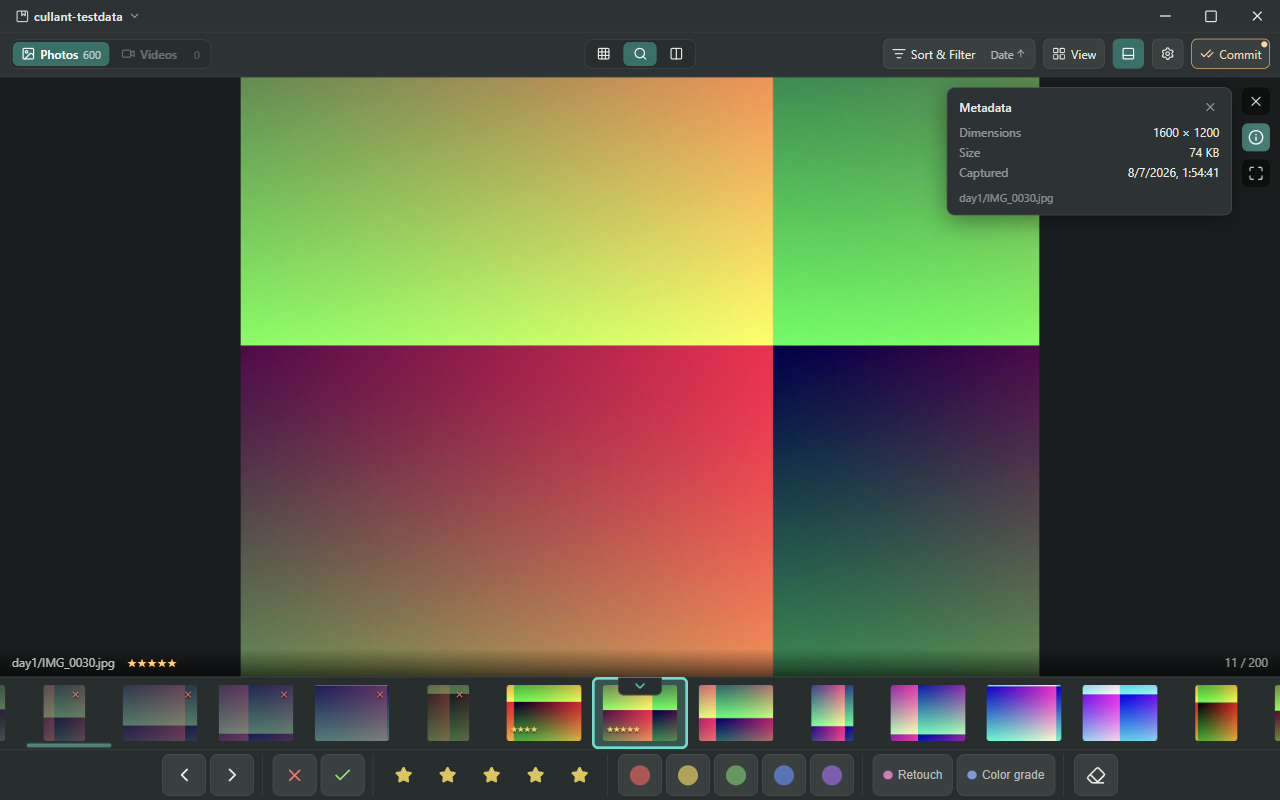
Loupe (E or Enter)
One frame, as large as the window allows. This is where you decide whether a photo is actually sharp.
- Z or Space jumps to 100%, then back out.
- I shows the camera metadata: body, lens, ISO, aperture, shutter, focal length.
- The filmstrip along the bottom keeps the rest of the shoot in reach.
The loupe never makes you wait. The cached thumbnail paints at once and the full preview streams in behind it, so the frame is on screen before the decode finishes.
Compare (C)
Two frames side by side, each with its own zoom and pan. For the moment when two shots of the same thing are both good and only one can survive.
Rate and flag either side without leaving the view.
Survey (N)
The current selection, or the current burst, laid out together. Then you knock out the ones that lose. The field narrows and the survivors get more of the screen, until one is left.
Use compare for two. Use survey for five.
Getting back
Esc always goes back towards the grid. F toggles full screen from anywhere.
On a phone or a tablet
The same four views, without a keyboard. A bar along the bottom carries the common actions, and a press-and-hold on a photo opens a ring of quick actions that you can arrange to suit yourself.